🎙️ One microphone, every language on the call

Every word of the meeting, in every language.

Someone speaks, and a second later their sentence is on screen, transcribed, cleaned of the ums and false starts, and translated into every language you picked, all at once. When the call ends, the whole conversation is written down, ready to keep.

New accounts are free: 5,000 words a week, no card.

Three steps, then it stays out of the way

Nothing to install, and nothing for the other people on the call to do. It runs in the browser on the laptop or phone that is already in the room. Do tell the others it is running: the translation is there for everyone to read, and some places require that everyone in the conversation knows.

Pick the languages

Choose what to translate into, one language or five, and what kind of call this is: a meeting, a family catch-up, a book club. The spoken language is detected on every sentence, so nobody has to say who is talking.

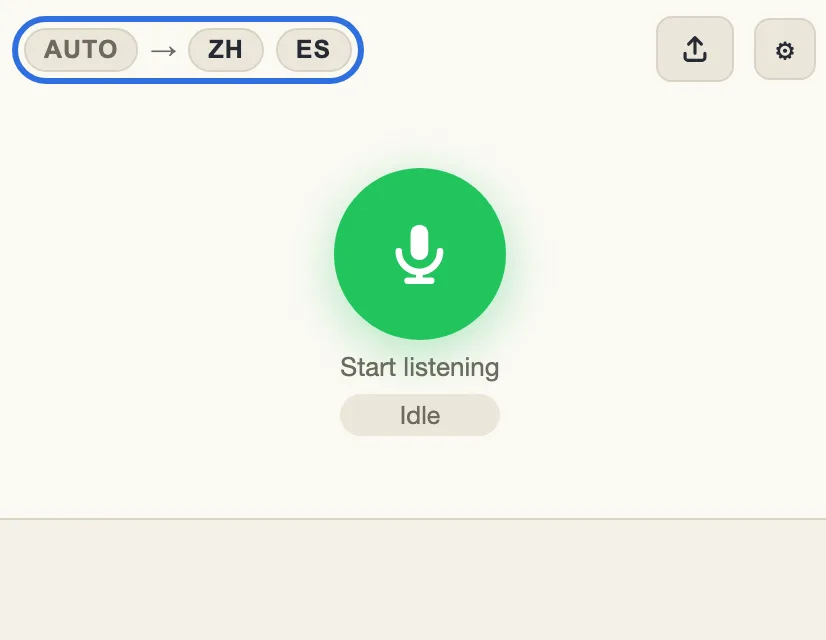
The menu bar, with the language badges outlined

Talk normally

A speech detector in the browser notices when someone starts and stops, so nothing is sent while the room is quiet and nobody holds a button. A long monologue is split at its natural pauses.

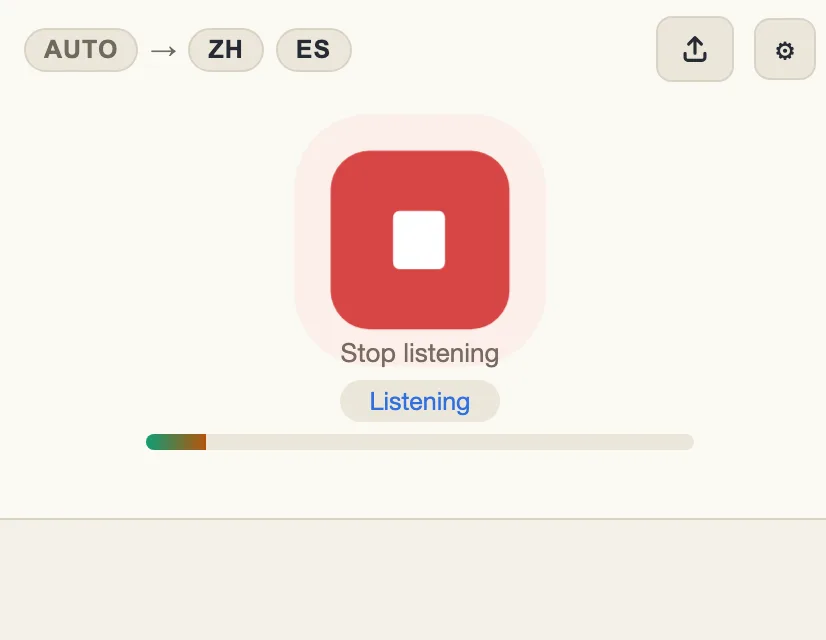
The translator listening: a red stop button and the level meter under it

Read it, hear it, keep it

Each sentence appears in every chosen language within a second or two, and can be read aloud. When the call ends, export it as a subtitle file.

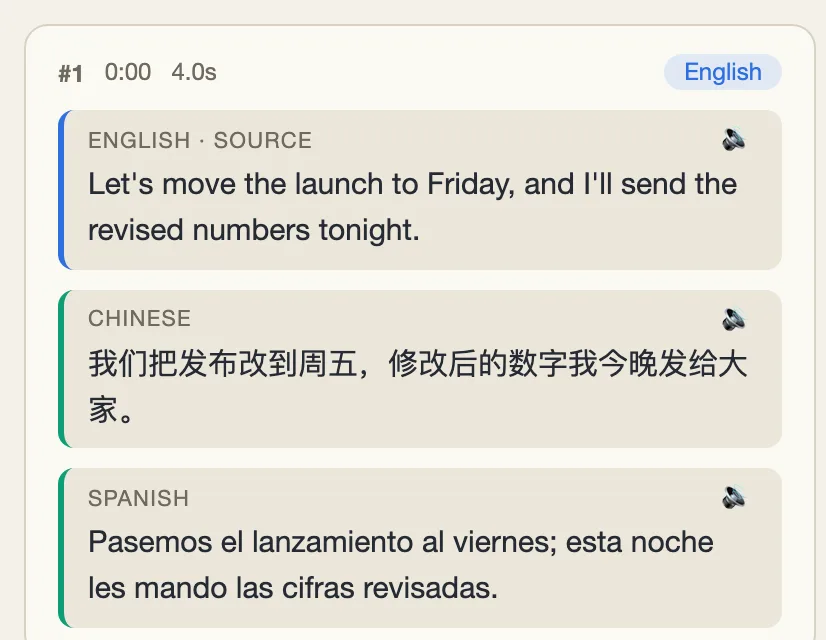
A sentence in English with its Chinese and Spanish translations, each with a read-aloud button

Already recorded? Upload the file

A meeting you recorded, a voice memo, a video of a talk: upload the audio or video file and it is transcribed and translated into every language you pick, sentence by sentence, as if it were being spoken into the microphone. When it is done, download the whole transcript with a timestamp on every sentence.

  1. Choose the languages

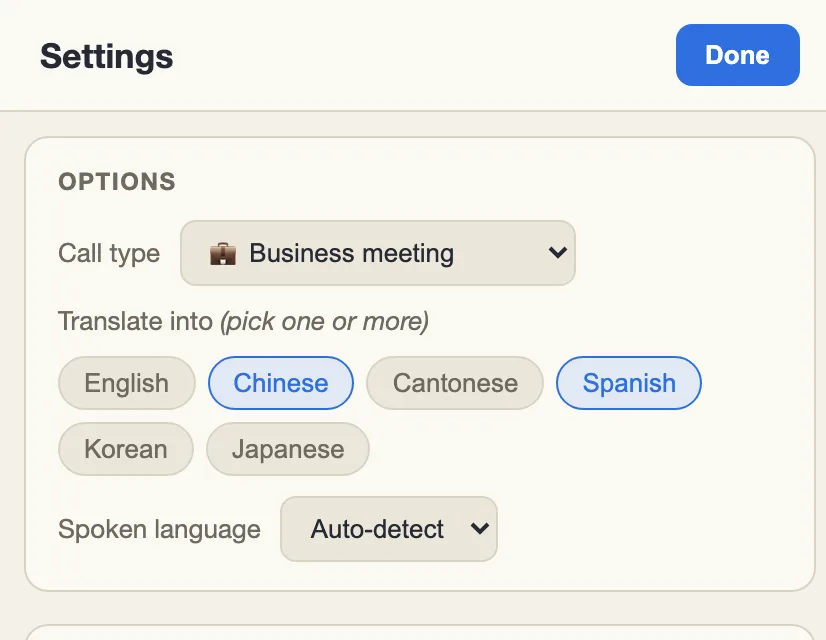
    Tap the language badges on the menu bar to open Settings. Pick what to translate into, one language or several, and the kind of call. The spoken language is detected for you.

    The Settings page, with Chinese and Spanish chosen as the languages to translate into
  2. Tap the upload icon

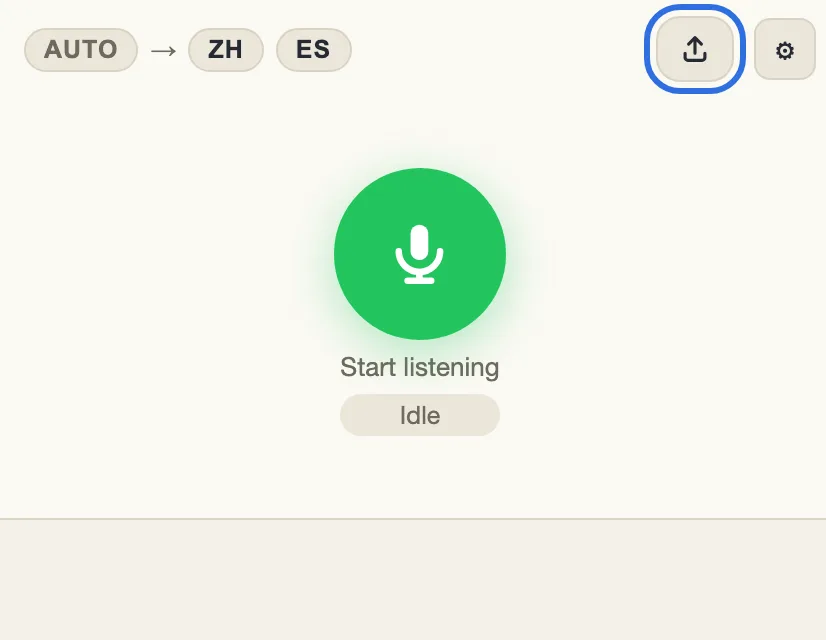
    It is on the menu bar, next to Settings. Choose an audio or video file: MP3, WAV, M4A, Ogg or MP4. From a video, only the sound is used.

    The menu bar, with the upload icon outlined next to Settings
  3. Read it as it arrives, then download

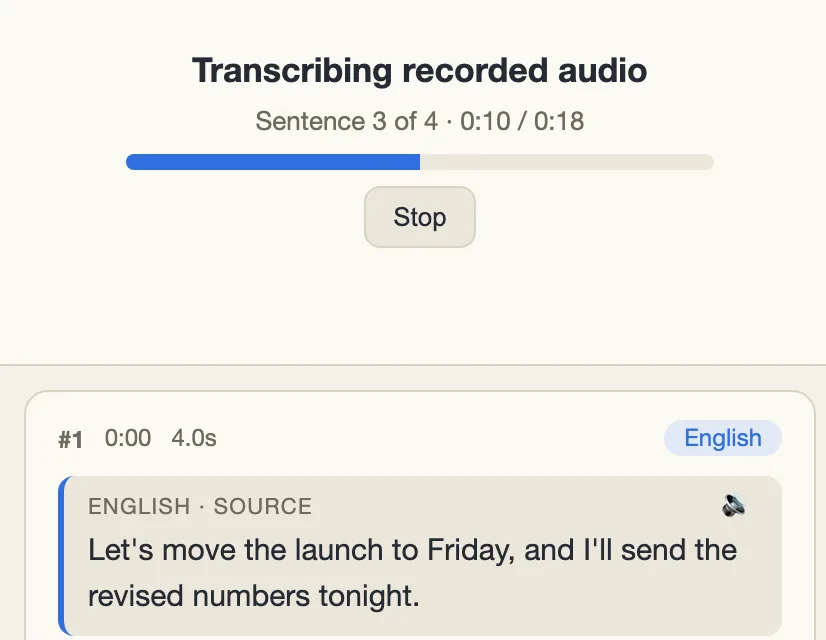
    Each sentence appears with its position in the recording, the original first and every translation under it. When it finishes, Export in Settings downloads the timestamped transcript as a subtitle file.

    A recording being transcribed: a progress bar, then each sentence with its time and its translations

Uploading needs a free account. The words in a recording count the same as words spoken live.

What it does

Four things, in order, to every sentence anyone says.

🎙️

Transcribes any speech

Whoever is talking, in whichever of 25 languages, is written down as they speak. The language is detected sentence by sentence, so a call that switches between English and Mandarin needs no settings changed mid-way.

✂️

Cleans it up

The ums, the false starts, the sentence begun twice: all gone from the transcript. When someone corrects themselves, you get what they settled on. Numbers, names and dates are never touched in the cleaning.

🌐

Translates into every language

One sentence, every language you picked, all streaming at once. Pick the kind of call, whether a meeting, a formal event, friends, politics, a book club or engineering, and the register follows: formal stays formal, casual stays casual, in each language’s own way.

📄

Keeps a record of the meeting

Every sentence is kept with the time it was said, in the original and in every language. It survives a reload, and exports as a subtitle file for the recording or a text file anyone can open.

The meeting, written down as it happened

Decisions get made in the last five minutes, when half the room has stopped taking notes. Every sentence is kept as it is spoken, in the original and in every language it was translated into, with the time beside it.

🗂️

Every language, side by side

Each entry keeps what was said and how it was translated, so a number or a date can be checked against the original rather than against memory.

💾

It outlives the call

The transcript survives a reload and stays until it is cleared. Export writes it as an SRT file: subtitles for the recording, or plain text anyone can read.

🕓

For the people who could not join

A colleague in another time zone, a relative who missed the call: they can read exactly what was said, in their own language.

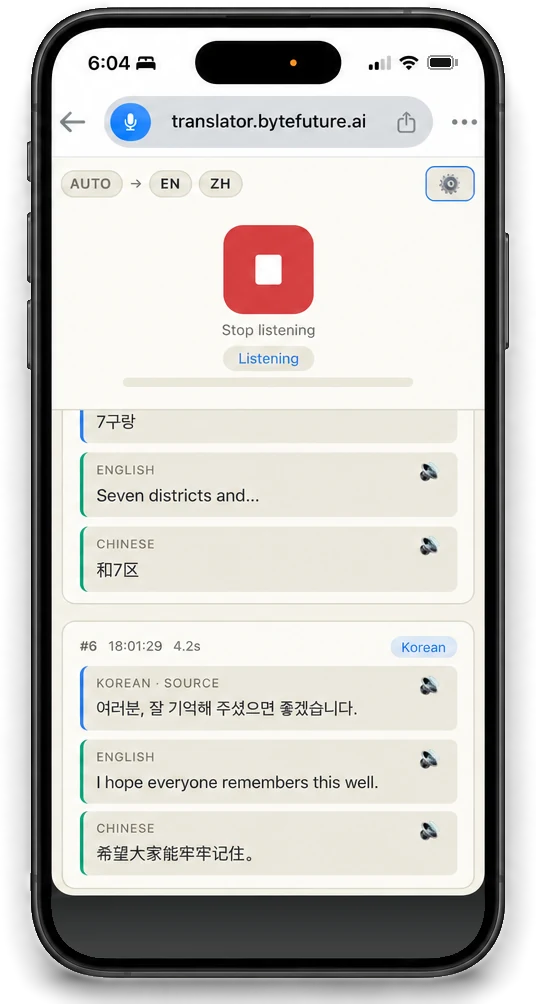
Meeting Translator on a phone in a meeting, translating Korean into English and Chinese as it is spoken
From a user

“We needed something for our face-to-face meetings, not just video calls. Meeting Translator is easy to use and translates the conversation live, right there in the room.”

James Loh

Free for the occasional call

Both plans are the same translator, with every language, every call type and every rule. The difference is how much can be said.

Where everyone starts

Free

$0 / forever

No card and no trial clock. Signing up puts you here.

  • 5,000 translated words a week
  • A rolling seven-day window for the weekly free quota
  • All 25 languages and all six call types
  • As many target languages per call as you like
  • Read-aloud, and the subtitle file to keep
Create a free account

Everyone who speaks draws on the same weekly words.

Questions people ask

What counts as a word?

The words actually spoken, whoever said them. Translations are free: a sentence costs the same whether it goes into one language or five, and hearing it read aloud costs nothing. Chinese, Japanese and other languages written without spaces are counted by character.

How far does a free week go?

People speak around 130 to 150 words a minute, so 5,000 words is over half an hour of actual talking: a full meeting, or several short calls. If you run out mid-call the app says so, and the allowance comes back over the following week.

What does a “rolling” week mean?

Usage is counted from right now backwards over seven days rather than reset on a fixed day. Words spent in Monday’s call stop counting the next Monday, so the allowance returns a little at a time. There is no reset hour to wait for.

Do the other people on the call need anything?

No. One person runs it, on the device that hears the room or the call audio; everyone else just talks. Share the screen into the call and the others see the translations too.

What happens to the audio and the transcript?

Speech goes to the third-party speech recognition and translation services this deployment is set up to use, and the text comes back. This server keeps neither the audio nor the transcript: the call stays in your browser until you clear it or export it. Your account holds your email address, whether you subscribe, and how many words each sentence used. An uploaded recording is the one exception: the file is held on this server while it is being transcribed, and deleted when that finishes or shortly after.

How do I sign in?

With your email address. We send a link, you tap it, and you are in. There is no password to choose or forget, the same link creates your account the first time, and each link works once.

Can I cancel whenever I want?

Yes. Subscriptions are handled in Stripe’s billing portal, which you reach from inside the app, and cancelling takes effect without asking anyone. Your account goes back to the free plan rather than disappearing.

What does the export look like?

An SRT subtitle file: every sentence with the time it was said, the cleaned-up original on one line and each translation on its own line beneath it. Drop it onto the call recording as subtitles, or open it as text. Nothing is uploaded to this server for that to work.

How does it hear a call on my laptop?

Through the device’s microphone, the same way it hears a room. On a video call, let the other side come out of the speakers rather than headphones, and put the laptop where it can hear both them and you. In a meeting room, one laptop or phone on the table is enough.

Can I upload a recording I already have?

Yes. Tap the upload icon on the menu bar, next to Settings, and choose an audio or video file: MP3, WAV, M4A, Ogg or MP4. It is transcribed and translated sentence by sentence, the same as a live call, and Export gives you the subtitle file with a timestamp on every sentence. Uploading needs an account.
Bring it to your next call

An email address is all it takes, and you will be set up in under a minute.

Start free